

How to prevent employee scheduling conflicts and double-bookings
Prevent employee scheduling conflicts before you publish: catch double-bookings, availability clashes, missed time off, and location overlaps.
Employee scheduling conflicts show up before anyone clocks in. Someone is booked on two overlapping shifts. A manager assigns a person who already has Friday off. One location expects them at 8 AM while another expects them across town at noon.
Those mistakes create uncovered hours, last-minute call-offs, overtime, and extra work for managers. Most of them are preventable.
A consistent process can check availability, time off, locations, roles, and hours against one published roster. This page covers the common conflicts, why they happen, and how to stop them before employees see the week. For the broader workflow, start with the employee scheduling guide.
Quick answer: how do you prevent employee scheduling conflicts?
Keep availability and approved time off current. Build staffing needs by role and location. Assign people against those constraints. Then audit every employee's full week for overlaps, travel, and hours before you publish one official schedule.
Fix conflicts in the published roster. Do not patch them in a side spreadsheet.
What is an employee scheduling conflict?
An employee scheduling conflict is an assignment that creates an operational problem or contradicts another rule.
Common cases include two shifts at the same time, a shift during approved time off, a shift outside stated availability, overlapping work at different locations, too many consecutive days, more hours than planned, a role the person is not qualified to do, a swap that creates a new clash, or a change that never reached the employee.
The grid can look full and still fail. Paper coverage is not the same as a week people can actually work.
Common types of employee scheduling conflicts
Name the conflict before you try to fix it.
Double-booked employees
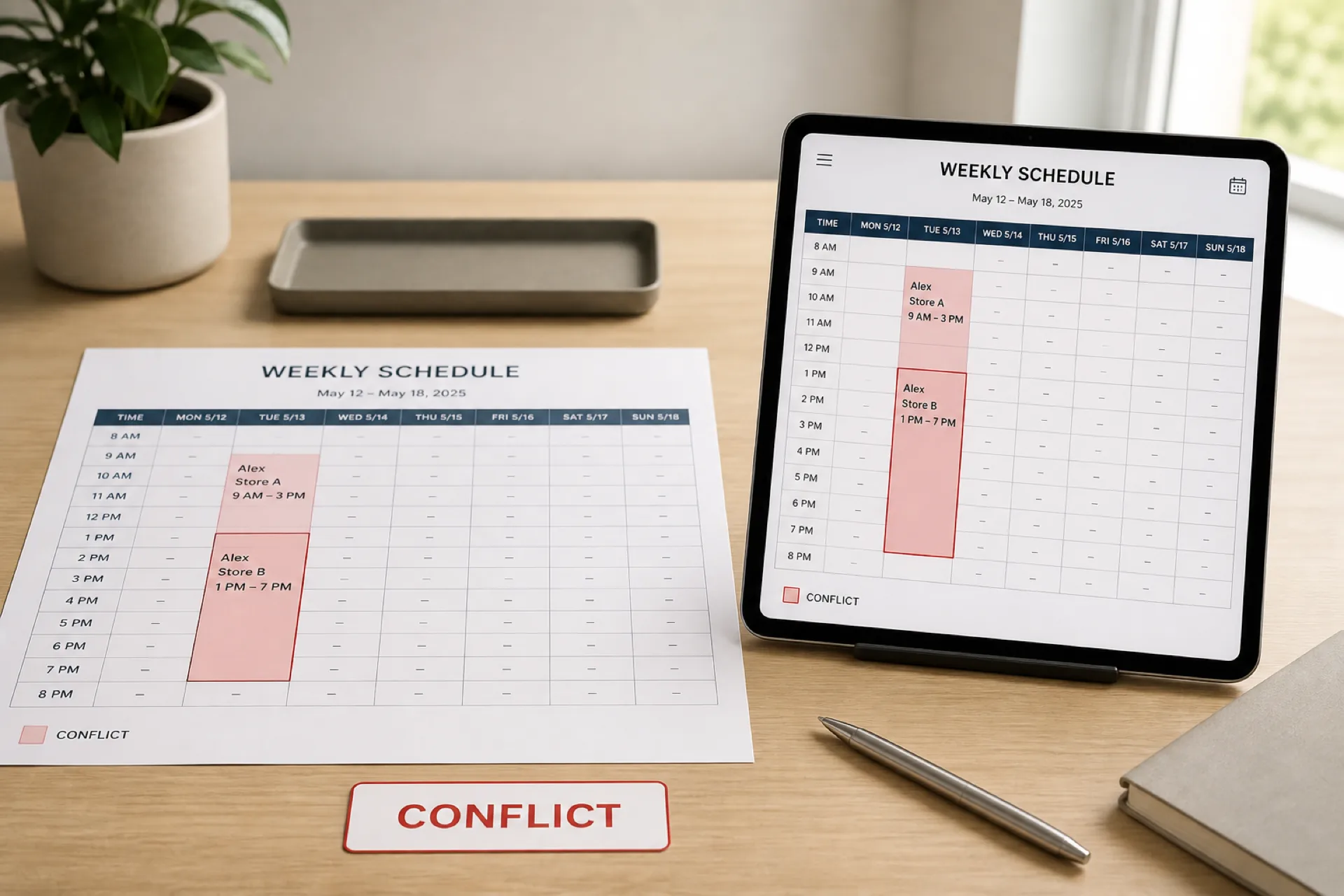
A double-booking is two overlapping assignments for the same person.
This example is hypothetical.
| Employee | Location | Shift 1 | Shift 2 |
|---|---|---|---|
| Alex | Store A | 9 AM-3 PM | 1 PM-7 PM |
Alex cannot work both. Double-booking gets worse when two location managers build separate files.
Availability conflicts
The person is assigned outside the hours they can work. Monday through Friday, 8 AM to 5 PM, is not a 6 PM to 10 PM Monday. The shift may look covered. The employee cannot take it.
Time-off conflicts
Approved leave is a hard constraint. If Friday is approved off and Friday is still assigned, time off is living in a different place than the roster.
Location conflicts
Back-to-back shifts at two sites can look legal on a timeline and still fail. Store A 8 AM to 12 PM plus Store B 12 PM to 4 PM ignores travel. The week has to be realistic, not only non-overlapping.
Role and qualification conflicts
A filled cell is not coverage if the role needs a nurse, a manager, or a certified food handler and the assigned person cannot do that work.
Excessive hours and overtime conflicts
A week can cover every shift and still schedule 52 hours for one person. Review daily hours, weekly hours, and overtime risk before you publish. Confirm actual overtime rules with qualified HR or legal counsel for your jurisdiction.
Why do employee scheduling conflicts happen?
Conflicts are usually a process problem. Managers are reconciling too many sources at once.
Availability changes, but the week is built from last month's notes. Separate spreadsheets hide which file is current. A manager edits one shift and misses a related assignment. Swaps happen in texts. Floaters appear on two location files. Call-offs force a rushed fill. Time off lives in email. Employees and managers read different versions of the week.
How to prevent employee scheduling conflicts
Prevent the clash before publish. Do not treat Friday cleanup as the process.
1. Keep employee availability up to date
Track available days and hours, unavailable periods, preferred shifts, recurring patterns, and temporary changes. Do not assume last month still applies.
2. Record approved time off before you schedule
Review time off, then build the week, then check coverage. Do not build first and discover approved leave afterward.
3. Schedule by role and location
Decide what each shift needs before you assign names.
This grid is hypothetical.
| Location | Shift | Required roles |
|---|---|---|
| Store A | 8 AM-4 PM | Manager, 2 sales |
| Store A | 4 PM-10 PM | Supervisor, 3 sales |
| Store B | 8 AM-4 PM | Manager, 3 sales |
| Store B | 4 PM-10 PM | Supervisor, 2 sales |
4. Identify employees who work across locations
Treat a floater as one person with one week. If Jordan works Store A Monday, Store B Tuesday, and Store C Thursday, review that full week, not each store file. For the build steps, see how to create an employee schedule for multiple locations.
5. Check for overlapping shifts
Compare start and end times, partial overlaps, short gaps, different locations, and travel. Exact overlap is not the only failure.
6. Review scheduled hours
Look at daily hours, weekly hours, consecutive days, overtime risk, long shifts, and unbalanced loads before payroll sees them.
7. Use one official published schedule
Draft, review, approve, publish, then communicate changes. Employees should not rely on old files, screenshots, email threads, or a printed copy that is no longer current.
How to identify employee double-bookings
For each person, list every assignment, sort by date and start time, compare consecutive shifts, check locations, confirm travel when needed, and resolve clashes before publish.
This review is hypothetical.
| Employee | Shift A | Shift B | Conflict |
|---|---|---|---|
| Sarah | Mon 8-4 | Mon 2-10 | Yes |
| Mike | Tue 8-4 | Tue 4-10 | No |
| David | Wed 9-5 | Wed 9-5 | Yes |
Sarah and David need a change before anyone sees the week.
How to handle a scheduling conflict after the schedule is published
- Name the exact conflict.
- Recheck the employee's availability before you move them.
- Look for a qualified replacement.
- Review that person's hours so the fix does not create overtime.
- Update the official roster, not a side note.
- Tell the people who are affected.
- Keep one final version.
How to prevent scheduling conflicts across multiple locations
Independent store files are how the same person gets two Tuesday afternoons.
Keep one employee roster, mark eligible locations, track availability in one place, set staffing needs per site, assign across locations, check cross-location clashes, review hours, then publish one week. Multi-location employee scheduling software is useful when that view no longer fits in one spreadsheet.
How to prevent conflicts when employees swap shifts
An unmanaged swap can move the conflict to someone else. Sarah gives Monday 8-4 to John, but John is already at another site from 12-8.
Approve a swap only after you check availability, existing assignments, location, role, qualifications, and hours. For the approval path, use shift swapping best practices.
How Excel and spreadsheets can create scheduling conflicts
Spreadsheets can work for a simple, stable week. They fail when availability, time off, locations, assignments, overtime, swaps, and attendance live on separate tabs or in separate files.
Multiple versions, missed updates, duplicate names, and hidden overlaps are the usual result. Spreadsheets are not automatically wrong. They get harder as people, sites, and mid-week changes increase. For the side-by-side, read employee scheduling software vs Excel.
Employee scheduling software vs manual conflict checking
| Scheduling task | Manual process | Scheduling software |
|---|---|---|
| Availability | Check by hand | Centralized |
| Time off | Review separately | In the same week |
| Double-booking | Manual scan | Conflict visibility |
| Multiple locations | Compare files | One workforce view |
| Shift swaps | Messages | Structured approval |
| Hours | Hand totals | Tracked with the roster |
| Schedule changes | Separate notice | Update the published week |
| Employee access | Email or print | Mobile or online |
The gain is fewer disconnected steps, not only a faster first draft.
Employee scheduling conflict prevention checklist
People
- Availability is current
- Time off is reviewed
- Roles and qualifications are correct
Assignments
- No overlapping shifts
- People are at eligible locations
- Required roles are covered
- Travel and gap times are realistic
Labor
- Weekly hours are reviewed
- Overtime risk is visible
- Consecutive days are checked
- Coverage matches expected demand
Changes
- Swaps are approved
- Call-offs have a replacement
- Edits are on the official roster
- Employees can see the current week
Example: fixing a weekly scheduling conflict
This is a hypothetical two-store week.
Store A needs a sales associate 10 AM to 6 PM. Store B needs the same person 2 PM to 10 PM.
| Employee | Location | Schedule |
|---|---|---|
| Alex | Store A | 10 AM-6 PM |
| Alex | Store B | 2 PM-10 PM |
Options: replace Alex at Store B, move Alex to Store B and refill Store A, or split coverage if another qualified person can take part of one shift. The useful step is catching the overlap before Alex is told to be in two places.
When should you use employee scheduling software?
Manual scheduling can work for a small team, one location, predictable hours, few changes, and simple availability.
Software is more useful with multiple locations, larger teams, frequent changes, many part-time staff, floaters, regular swaps, overtime risk, complex availability, or several managers building the week.
Headcount is not the test. The test is how hard it is to keep the schedule accurate. A 20-person, three-location operation with daily changes can be harder than a 50-person single site with a stable pattern.
How Heyshift helps prevent employee scheduling conflicts
Heyshift keeps availability, assignments, open shifts, swaps, time off, attendance, locations, and hours on one published roster. It is not an enterprise HRIS.
Paid plans start at $4, $6, and $9 per seat after a 30-day free trial, with unlimited locations on paid plans. The point is a week employees and managers can trust, not a faster unofficial file.
Best practices for preventing employee scheduling conflicts
- Start with current availability.
- Review approved time off first.
- Define staffing needs before names.
- Schedule across locations from one roster.
- Check each person's complete week.
- Approve swaps and major changes.
- Publish one official roster.
- Run a short audit before employees see it.
- Communicate changes immediately.
- Fix the recurring process, not only this week's clash.
Final thoughts
Employee scheduling conflicts are usually a process problem, not an employee problem.
When availability, time off, locations, roles, changes, and hours live in different places, clashes are easy to create. Bring them into one path: availability, staffing needs, assignments, conflict check, hours review, publish, then manage changes.
The week should be easy to explain and hard to contradict.
Frequently Asked Questions
Continue with related topics
More articles on topics related to this one.

Employee Schedule Change Management: One Official Roster
Learn employee schedule change management: a simple approval workflow, change log and notification process that keeps one official roster.
Read article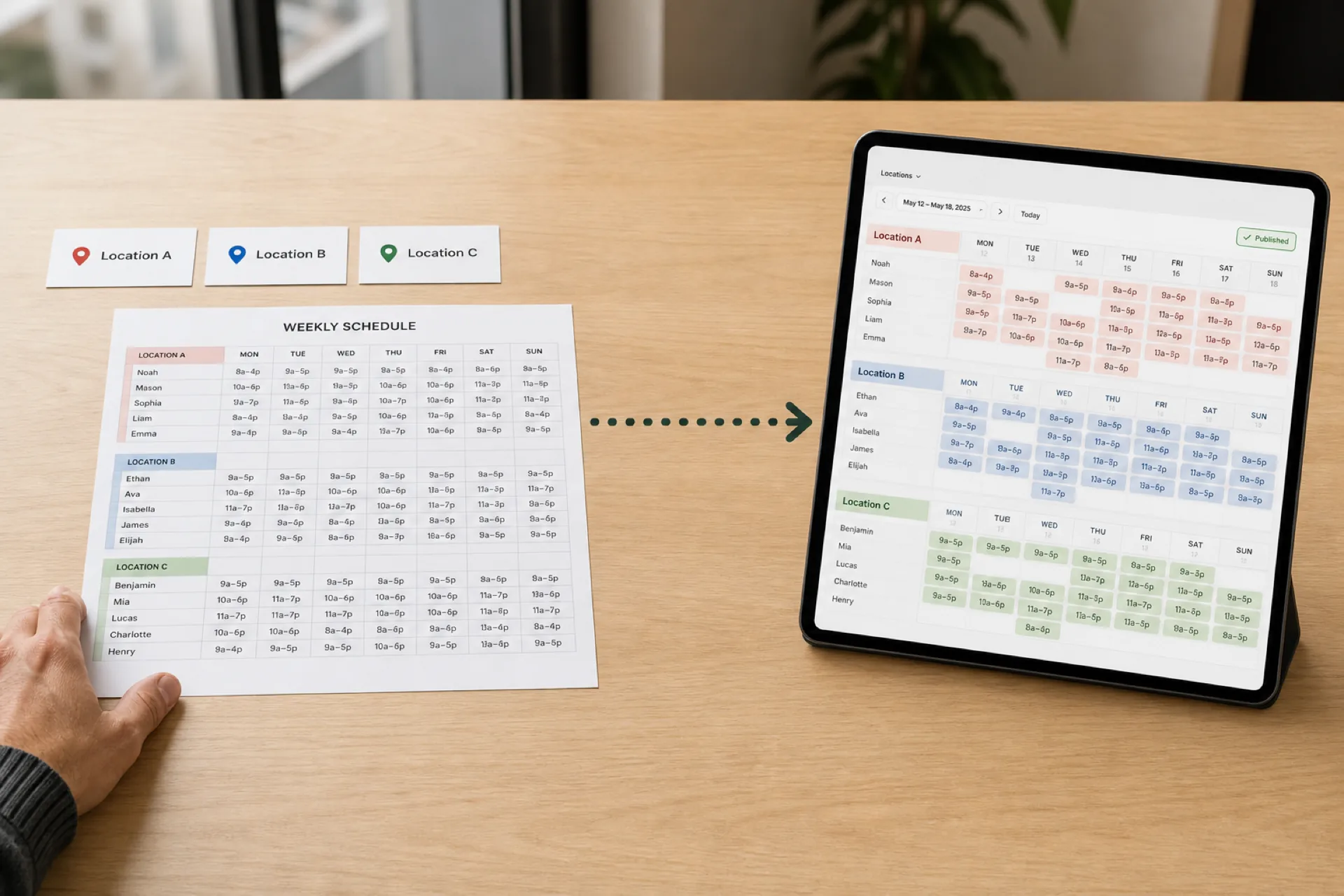
How to Create an Employee Schedule for Multiple Locations
Scheduling several locations is not the same as scheduling one store three times. Use a 10-step workflow, a staffing matrix, and one published roster.
Read article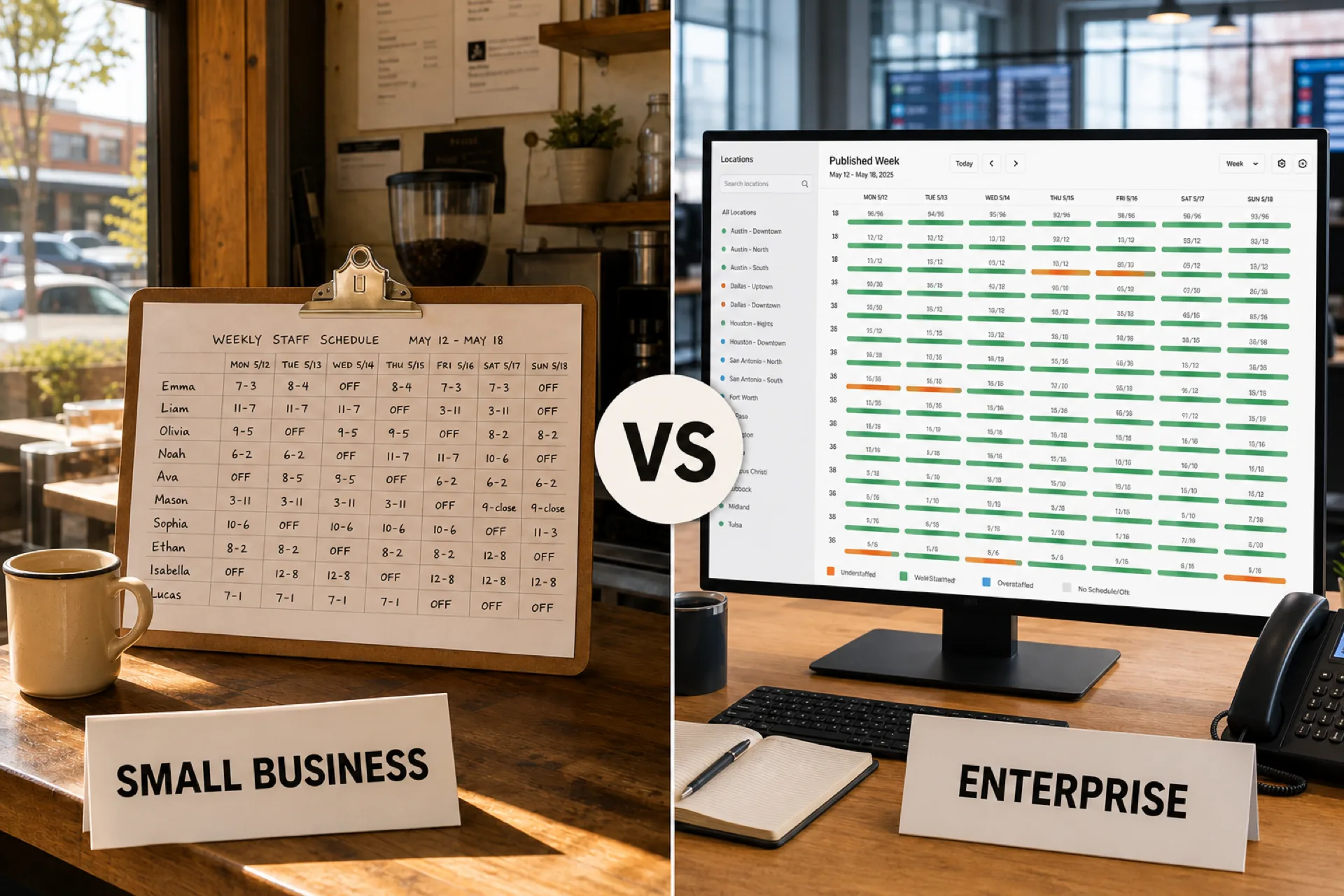
Employee scheduling software for small business vs. enterprise: what changes as you grow
Compare scheduling needs for small businesses, growing teams, and enterprise organizations. See which features matter as headcount and locations increase.
Read article